Keyboard Shortcuts
Clipcat is built to be fast. The actions you use most are one key combo away, so you rarely need the mouse.
System-wide Shortcuts
These work from any application on your system, even when Clipcat is hidden or minimized to the tray.
| Shortcut | Action |
|---|---|
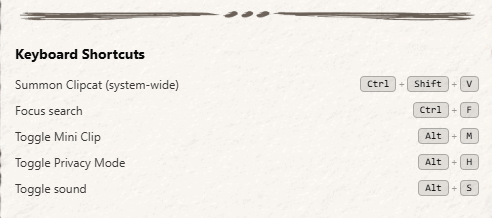
| Ctrl+Shift+V | Summon Clipcat (Windows / Linux) |
| ⌘+Shift+V | Summon Clipcat (macOS) |
In-app Shortcuts
These work when the Clipcat window is in front.
| Shortcut | Action |
|---|---|
| Ctrl+F | Focus the search bar. In Mini Clip mode, or on a small screen, it opens or closes the search bar instead. |
| Ctrl+K | Open the command palette |
| Ctrl+Shift+P | Open the command palette (the same thing) |
| Alt+M | Turn Mini Clip mode on or off |
| Alt+H | Turn Privacy Mode on or off (blurs every clip) |
| Alt+S | Turn sound effects on or off |
On macOS the search shortcut is still Ctrl+F, not ⌘+F. The command palette accepts either key, so ⌘+K and ⌘+Shift+P both open it.
Moving Around Without the Mouse
Mini Clip mode and Quick Paste mode work well from the keyboard. The clip you are on is highlighted, and moving past the last clip wraps around to the first.
| Key | Action |
|---|---|
| ↓ / ↑ | Move to the next or previous clip |
| Enter | Paste the selected clip into the window you were using |
| Esc | Close the search bar if it is open, otherwise clear the selection |
| Ctrl+F | Open or close the search bar |
Tips
- Quick Paste workflow: press Ctrl+Shift+V (⌘+Shift+V on Mac) while you are working in another app. Use the arrow keys to pick a clip, press Enter, and the clip lands in the window you were using.
- Command palette: press Ctrl+K to reach most features without opening Settings.
- Search from anywhere: once Clipcat is open, Ctrl+F jumps to the search box. On a small screen, or in Mini Clip mode, it shows or hides the search bar instead.
- Mini Clip sticks: Alt+M is remembered between sessions, and Mini Clip keeps the window on top of other apps while it is on.