Getting Started
Clipcat is a clipboard manager that automatically saves everything you copy, text and images, so you can find it, reuse it, and manage it.
Copy something today, then copy fifty other things. That first clip is still in the list, and you never had to name it or file it anywhere.
It runs on Windows, macOS, and Linux as a lightweight tray app with no cloud, no account, and no tracking.
Download
Pick your platform and download the latest release:
| Platform | Download |
|---|---|
| Windows (installer) | Clipcat-windows-amd64-installer.exe |
| Windows (portable) | Clipcat-windows-amd64.exe |
| macOS (Apple Silicon) | Clipcat-macos-arm64.dmg |
| macOS (Intel) | Clipcat-macos-amd64.dmg |
| Linux x86-64 (binary) | Clipcat-linux-amd64 |
| Linux (.deb) | Clipcat-linux-amd64.deb |
Not sure which one to pick?
- The Windows installer sets Clipcat up for you. The portable one is a single file you can run from anywhere, with nothing to install.
- On macOS, Apple Silicon covers M1 and newer Macs. Intel covers anything older.
- On Linux, use the
.debon Debian, Ubuntu, or Mint. Use the plain binary everywhere else, after runningchmod +xon it.
You can check any download against SHA256SUMS.txt, which sits next to it on the release page.
Clipcat is fully open source and safe, but has no code-signing certificate yet. The first-run notes below show how to get past the warning your OS shows.
First-Run Notes
Windows - SmartScreen
- Click More info
- Click Run anyway
Or right-click the .exe -> Properties -> check Unblock -> Apply.
macOS - Gatekeeper
Right-click the .dmg -> Open -> click Open in the dialog.
Alternatively, go to System Settings -> Privacy & Security and click Open Anyway after the first blocked attempt.
Clipcat needs Accessibility permission to simulate paste (Cmd+V). Grant it under System Settings -> Privacy & Security -> Accessibility.
Linux
Option 1 - Standalone binary
chmod +x Clipcat-linux-amd64
./Clipcat-linux-amd64
This option needs two libraries already on your system: libgtk-4-1 and libwebkitgtk-6.0-4. If Clipcat won't open, install them first:
sudo apt install libgtk-4-1 libwebkitgtk-6.0-4
Package names differ a bit between distros. Look for gtk4 and webkitgtk-6.0 in your package manager.
Option 2 - .deb package (Debian / Ubuntu / Mint)
sudo dpkg -i Clipcat-linux-amd64.deb
# Or install missing deps if needed:
sudo apt install -f
The .deb installs Clipcat as /usr/local/bin/clipcat. It also tells your package manager that Clipcat needs libgtk-4-1 and libwebkitgtk-6.0-4, so those get installed for you.
Install xdotool for window focus and paste simulation:
sudo apt install xdotool
On X11, Clipcat watches the clipboard by itself, so you need nothing extra. On Wayland it reads the clipboard with wl-paste, which is why the wl-clipboard package is needed there.
If you're on Wayland (e.g. COSMIC, GNOME on Wayland), also install:
sudo apt install wl-clipboard
App Screenshot
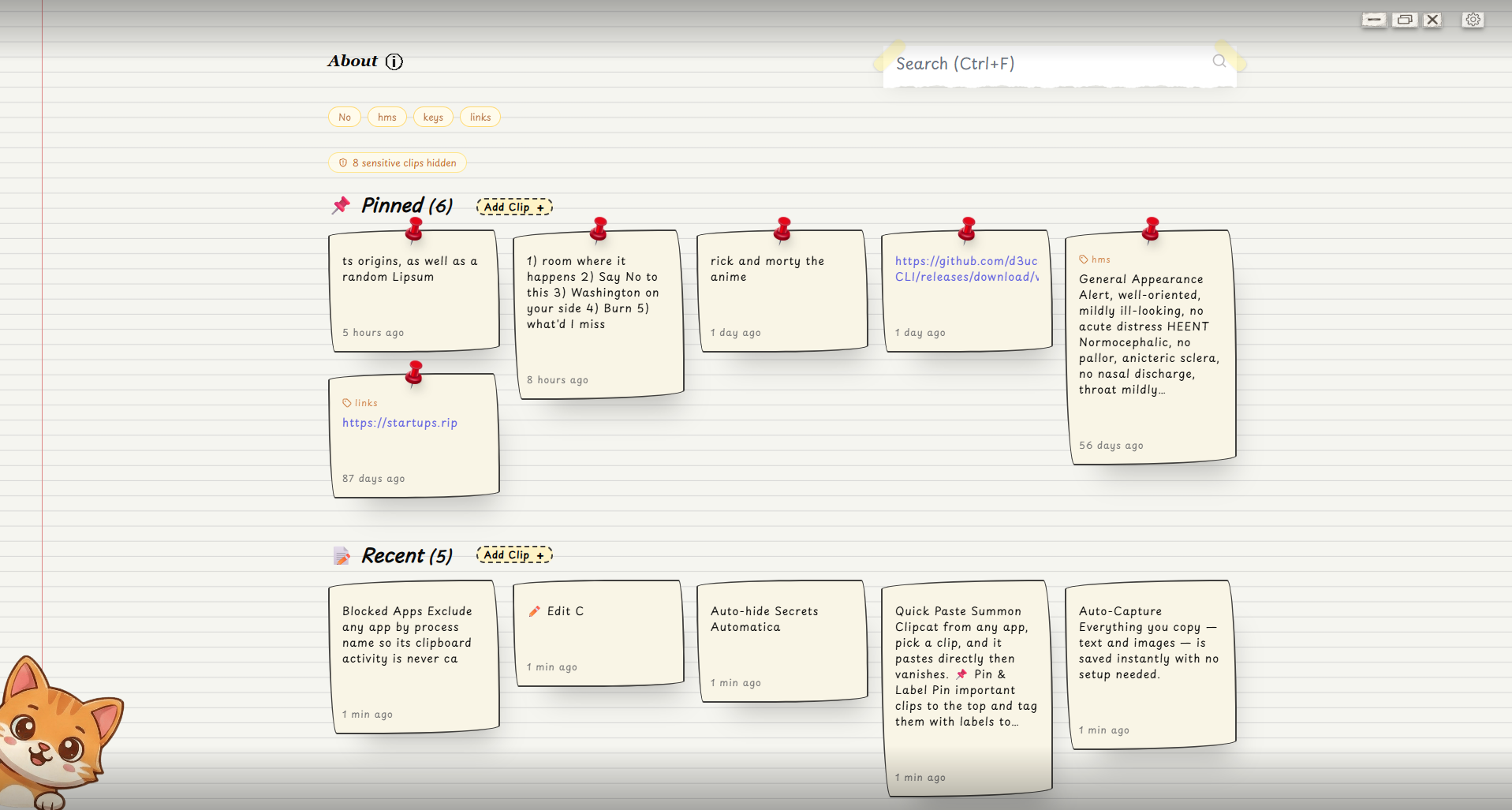
Where Are My Clips Stored?
All clips are saved in a local SQLite database. No data ever leaves your machine.
| Platform | Path |
|---|---|
| Windows | %APPDATA%\clipussy\db\gyatt.db |
| macOS | ~/Library/Application Support/clipussy/db/gyatt.db |
| Linux | ~/.config/clipussy/db/gyatt.db |